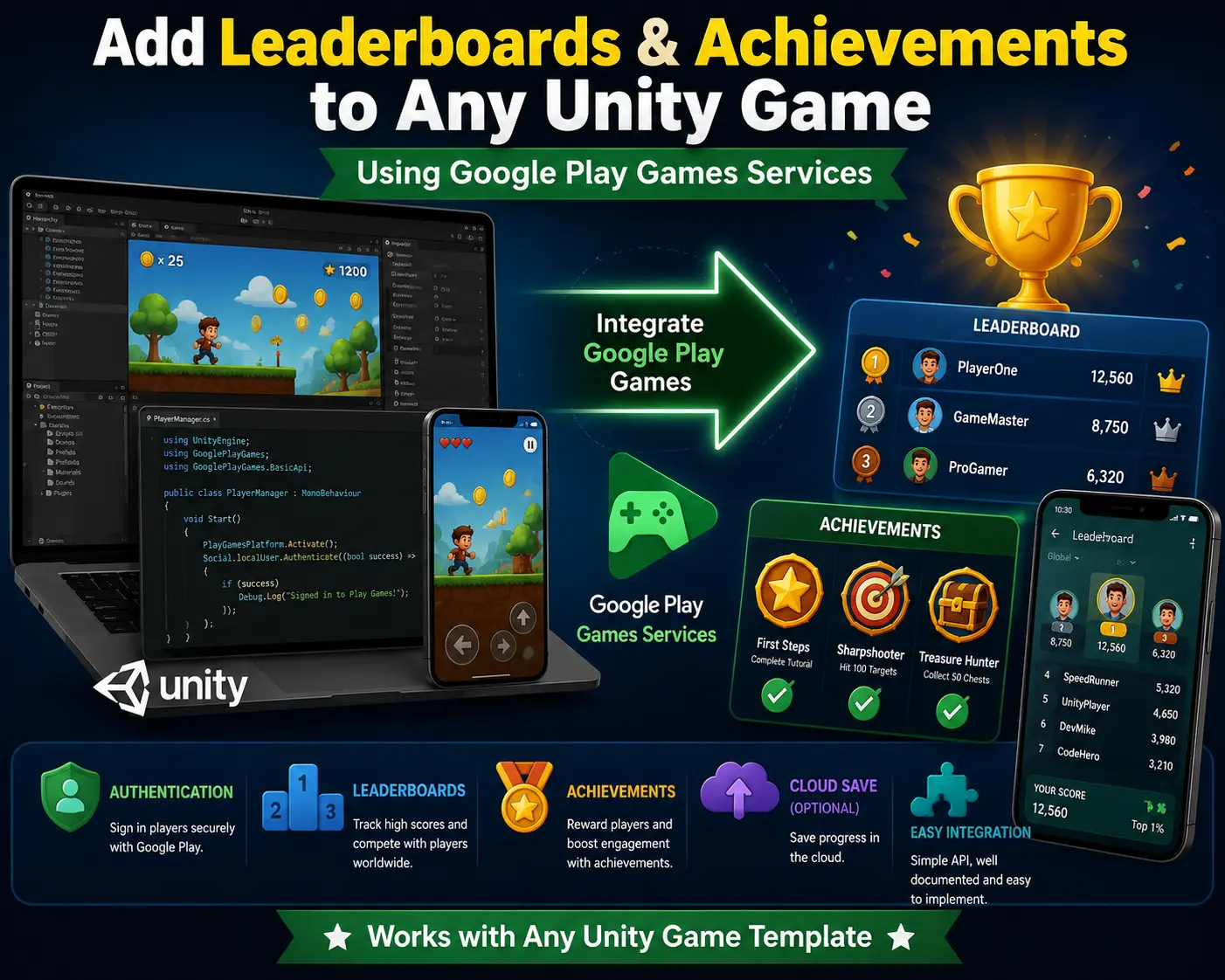
If you're building a mobile game with Unity and want to boost player retention, few features work as well as leaderboards and achievements. They tap into competitive instincts, give players a reason to come back, and increase session length — all without you needing to design new levels or content. The good news is that you don't need to build any of this from scratch. Google Play Games Services (GPGS) gives you a ready-made system for leaderboards, achievements, cloud save, and sign-in, and it integrates smoothly with almost any Unity game template, whether it's a puzzle game like Bird Sort Puzzle, an arcade title like Hoop Stario, or a multiplayer game like Ludo Online Multiplayer.
In this guide, you'll learn exactly how to add Unity leaderboards and Unity achievements to your game using Google Play Games Services, step by step — from Play Console setup to writing the C# code that submits scores and unlocks achievements. Whether you're working with a fresh Unity project or a ready-made template from our collection of Unity game templates, this process applies the same way.
Google Play Games Services (GPGS) is a free platform-level SDK from Google that lets Android game developers add social and competitive features to their games without building backend infrastructure. It includes:
For Unity developers, Google maintains an official Google Play Games Plugin for Unity, which wraps the native Android GPGS SDK into a C# API you can call directly from your game scripts. This means you can add a full leaderboard and achievement system to your Unity template in a single afternoon, no matter which genre you're working in — check out our hyper-casual game category for examples of the kinds of templates this integration works great with.
Before diving into implementation, it's worth understanding why this integration matters so much for mobile game success:
If you're reselling or reskinning Unity templates (a common practice among mobile game developers), adding GPGS integration is also one of the easiest ways to differentiate your app from the dozens of other reskins using the same base template. If you haven't reskinned a template before, our guide on how to reskin a Unity game template is a great place to start before adding this layer on top.
To follow this tutorial, make sure you have:
Before writing any code, you need to register your app in the Google Play Console and link it to Play Games Services.
This step is critical because Google Play Games Services validates your app's package name and signing certificate before allowing any leaderboard or achievement calls to succeed.
With your app linked, you can now define the actual leaderboards and achievements your game will use.
To create a leaderboard:
To create an achievement:
Repeat this for every leaderboard and achievement you want in your game. A well-designed idle or runner game template typically has 5–15 achievements and 1–3 leaderboards (e.g., "High Score," "Longest Streak," "Fastest Time"). If you're not sure which genre to build this into next, our roundup of top hyper-casual Unity game source codes for 2026 is a good place to find inspiration.
Now it's time to bring GPGS into your Unity project.
This plugin exposes the native Android GPGS APIs (sign-in, leaderboards, achievements, cloud save) as simple C# methods, so you don't have to touch any Java or Kotlin code.
With the plugin installed, configure it to match your Play Console setup.
This configuration step is what actually wires your Unity project to the leaderboards and achievements you created in Play Console.
Every leaderboard or achievement call requires the player to be signed in with their Google Play Games account first. Here's a simple sign-in script:
using GooglePlayGames; using GooglePlayGames.BasicApi; using UnityEngine; public class GPGSManager : MonoBehaviour { void Start() { PlayGamesPlatform.Activate(); SignIn(); } public void SignIn() { PlayGamesPlatform.Instance.Authenticate((success) => { if (success == SignInStatus.Success) { Debug.Log("Login successful!"); } else { Debug.Log("Login failed: " + success); } }); } }
Once signed in, submitting scores and displaying the leaderboard UI takes just a couple of method calls.
using GooglePlayGames; using UnityEngine; public class LeaderboardManager : MonoBehaviour { public void SubmitScore(long score) { Social.ReportScore(score, GPGSIds.leaderboard_high_score, (bool success) => { Debug.Log("Score submitted: " + success); }); } }
Replace leaderboard_high_score with the constant generated in your GPGSIds.cs file, matching the leaderboard you created earlier.
public void ShowLeaderboardUI() { Social.ShowLeaderboardUI(); }
This opens Google's native leaderboard interface, which already includes rankings, avatars, and player names. No custom UI is required.
public void ShowSpecificLeaderboard() { PlayGamesPlatform.Instance.ShowLeaderboardUI( GPGSIds.leaderboard_high_score ); }
This is useful if your game contains multiple leaderboards and you want to open a specific one directly.
Achievements work similarly, with slightly different API calls depending on whether they are standard (one-time unlock) or incremental (progress-based).
public void UnlockAchievement() { Social.ReportProgress( GPGSIds.achievement_first_win, 100.0f, (bool success) => { Debug.Log("Achievement unlocked: " + success); }); }
public void IncrementAchievement(int steps) { PlayGamesPlatform.Instance.IncrementAchievement( GPGSIds.achievement_kill_100_enemies, steps, (bool success) => { Debug.Log("Achievement progress updated: " + success); }); }
public void ShowAchievementsUI() { Social.ShowAchievementsUI(); }
A good practice is to centralize all achievement checks inside a single AchievementManager script that listens for game events (enemy killed, level completed, coins collected, etc.) and automatically reports progress to Google Play Games Services.
11. Step 8: Testing Leaderboards and Achievements
Before publishing, you need to test the integration properly:
Skipping this step and testing only in the Unity Editor won't work — GPGS sign-in and score submission require an actual signed build running through Google Play on a real or emulated Android device.
| Error | Likely Cause | Fix |
|---|---|---|
| Sign-in fails silently | Package name mismatch between Unity and Play Console | Double-check Bundle Identifier matches exactly |
| "Developer error" on sign-in | App not signed with the correct keystore | Use the same signing key registered in Play Console, and add the SHA-1 fingerprint |
| Leaderboard UI shows empty | Testers not added, or app not on internal testing track | Add your account under Testers in Play Games Services setup |
| Achievement not unlocking | Wrong ID used, or ID not linked via Resources Definition | Re-copy the Resources Definition XML and rerun Android Setup |
| Works in Editor but not on device | GPGS doesn't fully function inside Unity Editor | Always test via a signed build on a real device |
Q1: Does Google Play Games Services work with any Unity game template, or only specific genres? It works with virtually any genre — endless runners, idle games, puzzle games like Bird Sort Puzzle, arcade games, and more — as long as the game runs on Android and has a way to generate a score or track player milestones.
Q2: Is Google Play Games Services free to use? Yes. GPGS is completely free. The only cost involved is the one-time $25 Google Play Console developer registration fee, which you likely already have if you're publishing Android games.
Q3: Can I add leaderboards and achievements to a game I'm about to reskin or resell? Yes, and it's a common practice. Since IDs are unique per app, you simply repeat the Play Console and GPGSIds setup for each new reskinned build using its own package name. Check our guide on how to reskin a Unity game template if you're starting from scratch.
Q4: Why isn't my leaderboard showing any scores during testing? This usually happens because your Google account isn't added as a tester in Play Console, or your build isn't signed with the release keystore linked to your app.
Q5: Do I need an internet connection for leaderboards and achievements to work? Yes, GPGS requires an internet connection to authenticate and sync data with Google's servers. Some newer plugin versions offer limited offline caching, but a connection is needed to actually submit or view rankings.
Q6: Can I use Google Play Games Services alongside Firebase or other backend systems? Yes, they can work together. Many developers use GPGS purely for leaderboards, achievements, and sign-in, while using Firebase separately for analytics, remote config, or custom backend logic.
Q7: What's the difference between standard and incremental achievements? Standard achievements unlock all at once (e.g., "Complete Tutorial"), while incremental achievements track progress toward a target value over time (e.g., "Collect 500 Coins"), unlocking automatically once the target is reached — a good fit for games like Hoop Stario where players build up a streak over time.
Q8: Does adding GPGS increase my app size significantly? No, the Google Play Games plugin adds a relatively small footprint compared to the overall size of most mobile game builds, especially compared to asset and texture files.
Q9: Can iOS games use Google Play Games Services too? No, GPGS is an Android-only service tied to the Google Play ecosystem. For iOS, you'd use Apple's Game Center for equivalent leaderboard and achievement functionality — see our guide on how to launch a Unity game on iOS in 2026 for the full iOS publishing process.
Q10: How long does it take to fully integrate leaderboards and achievements into a Unity template? For a developer following this guide, basic integration typically takes a few hours, including Play Console setup, plugin configuration, and testing on a real device.
Adding leaderboards and achievements to a Unity game using Google Play Services is one of the highest-impact, lowest-effort upgrades you can make to any mobile game template. With Play Console setup, the official Unity plugin, and a handful of C# scripts, you get a polished competitive layer that increases retention, encourages replay value, and makes your game feel significantly more complete — all backed by Google's infrastructure instead of a custom backend you'd have to build and maintain yourself.
Once you've built the core GPGSManager, LeaderboardManager, and AchievementManager scripts described in this guide, you can reuse them across every future Unity project or template, turning what used to be a multi-day integration task into something you can drop into a new game in under an hour.
If you're serious about publishing mobile games at scale — whether original titles or reskinned templates — mastering this Google Play Games Services integration is a skill that will pay off on every single release. Browse our full library of ready-to-launch Unity game templates, including multiplayer projects like Ludo Online Multiplayer and sports games like Basketball Dunk, to find your next project to integrate leaderboards and achievements into.



